Topics
- Article
- App & Features
10 Hidden Features in WHOOP
WHOOP is designed to help you understand your body and optimize your health through continuous monitoring and personalized insights. Whether you're exploring the platform for the first time or looking to deepen your engagement, this guide offers 10 practical tips to help you get the most out of WHOOP.
1. Set a haptic alarm
Find it in the Sleep Planner.
WHOOP uses a vibrating, silent haptic alarm to wake you up, or at the gym when you've hit your Strain goal. Use Sleep Planner to gently start your day with a haptic Wake Alarm. The vibrations help avoid waking others.
2. Activate tilt mode
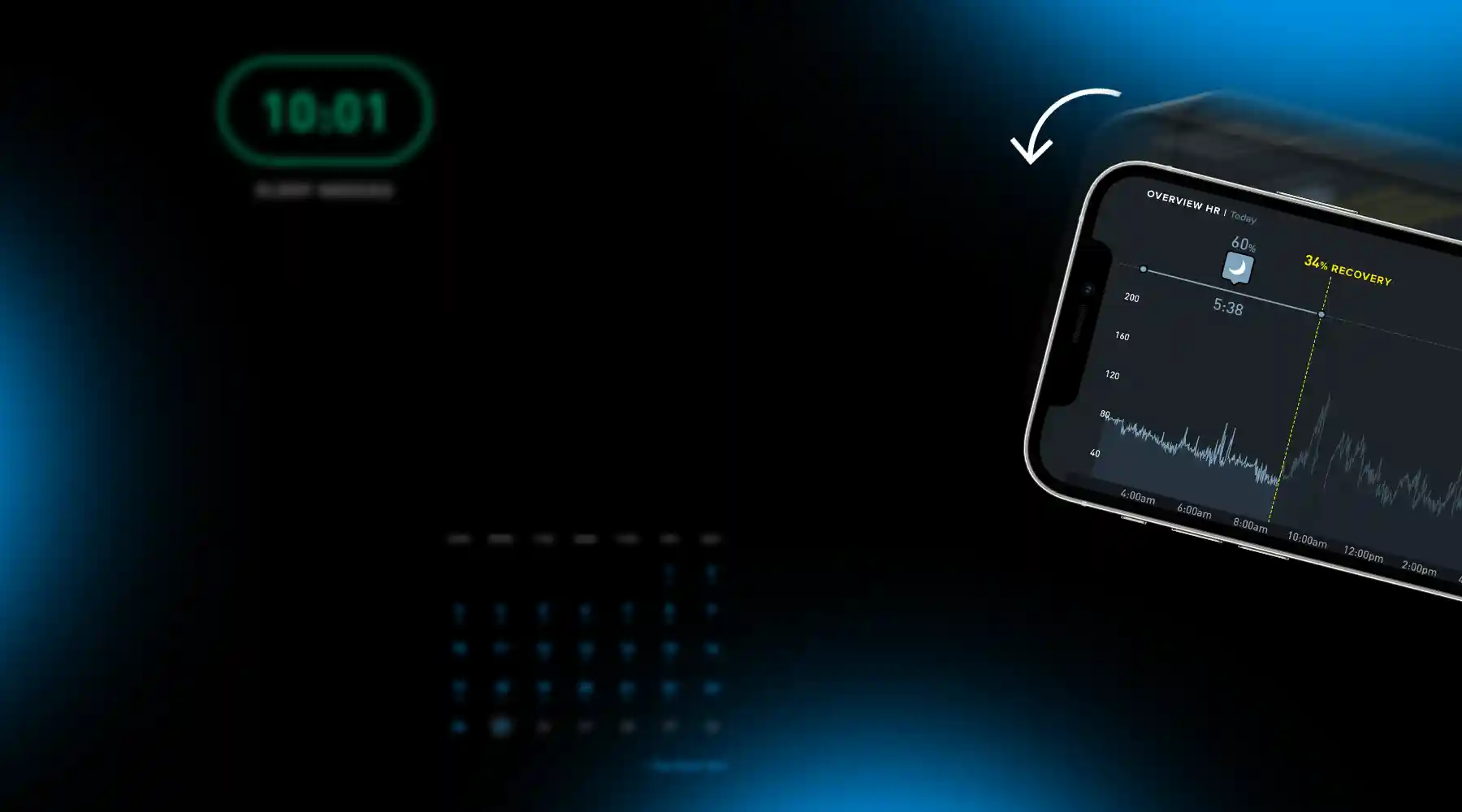
Rotate your phone 90° to get a new view of your WHOOP stats, horizontally.
See your heart rate throughout the day, as well as your Sleep, Strain, and Recovery scores at a glance. Make sure that your phone has Portrait Orientation Lock off in order to take advantage of this feature.
3. See your all-time stats
Click your profile to view metrics under "Data Highlights" to check out your personal best performance on WHOOP. Under "Data Highlights," you can view your total number of activities, max heart rate, peak day Strain, and top activities. You can also see the range for heart rate variability (HRV) and resting heart rate (RHR), as well as all of those same metrics for the last 30 days or 90 days.
4. Download your Health Report
Visit Health Monitor under the Health tab to share a PDF of key health metrics with a doctor, trainer, or other professionals straight from the WHOOP app and showcase a broader picture of your holistic biometrics over time. You can also see 30-day and 180-day changes in your respiratory rate and resting heart rate.
5. Broadcast your heart rate
Find it in the Settings tab, then tap Device Settings to display your WHOOP heart rate while you run, spin, cycle, and row on the devices and apps you love, like Peloton, Strava, and Zwift. This feature is also compatible with Concept2, Wahoo, Trainer Road, Run Keeper, and some Garmin smartwatches.
6. Create a WHOOP team
Go to the Community tab and tap the "..." to create a WHOOP team with your friends and family to see each other's Sleep, Strain, and Recovery metrics, as well as chat and celebrate weekly victories. Make it a friendly competition or a healthy way to stay accountable! You can also join tons of existing public teams.
7. See and celebrate your streaks
Tap the flame next to your profile to see your Day Streaks, when your streak started, and your max streak.
8. Add a WHOOP iOS Widget
WHOOP offers three different types of widgets on iOS: home screen, lock screen, and live activities. Add a Lock Screen widget and allow iOS Live Activities.
9. Customize your Journal
Customize and update your Journal with new behaviors to see how your daily choices affect your Recovery. A behavior must have at least 5 yes responses and at least 5 no responses over a 90-day period to see your Recovery Impacts.
10. See Sleep Need calculations
Go to Sleep Planner and tap 'Time In Bed". Ever wonder how your sleep need is calculated? We take into account your baseline sleep need, recent strain, sleep debt, and recent naps. Check out the Sleep Performance feature under Sleep to see how your sleep need and hours of sleep compare to the previous 30 days. To specifically understand what you need for tonight's sleep, go through the Sleep Planner and tap 'time in bed.'